Want to make an underwear AI lookbook the way other fashion lookbooks are made, with a range of models and backgrounds?
StyleRoom makes that possible.
- WhatA new flow in StyleRoom's [Style Shot] menu, under [Underwear / Bikini], for making underwear (lingerie) and bikini AI lookbooks.
- HowFour steps: Fashion Model → Background → Fitting → Style Shot Set.
- Where to start[Choose an Underwear Model] to start from the model, or [Start from a Fitting Shot] to start from one you already have.
- ResultOne shot for every background you pick, and up to 100 at once.


Same outfit, same model, different backgrounds
Put your clothing photo on a model (the Fitting Shot), pick backgrounds that suit it, and branch out into many shots. That's the Style Shot flow, and you can now use it as is for underwear and bikinis.
The [Style Shot] menu now has starting points made for underwear.

01 · NewUnderwear AI lookbooks: two ways to start
Find both under [Underwear / Bikini] in the [Style Shot] menu.
Choose an Underwear Model. Pick a model, upload your clothing image, and build from scratch.
Start from a Fitting Shot. Load a sample Fitting Shot, or one you made in StyleRoom, and begin at background selection.
| Starting point | Best when | Flow |
|---|---|---|
| Choose an Underwear Model | You want to pick the model first and build from scratch | Model → Background → Clothing image → Style Shot Set |
| Start from a Fitting Shot | You already have a Fitting Shot, or want to try a sample, and want more background shots | Load Fitting Shot → Background → Style Shot Set |
| Underwear / Bikini (Legacy) | You want to keep using the earlier method from our previous article | Model → Clothing image → Background → Style Shot |
02 · FlowStarting with Choose an Underwear Model
Four steps appear at the top of the screen.
They run Fashion Model → Background → Fitting → Style Shot Set.
First choose whether to create a front-view or back-view shot. If the back of your garment has details, start with the back view.
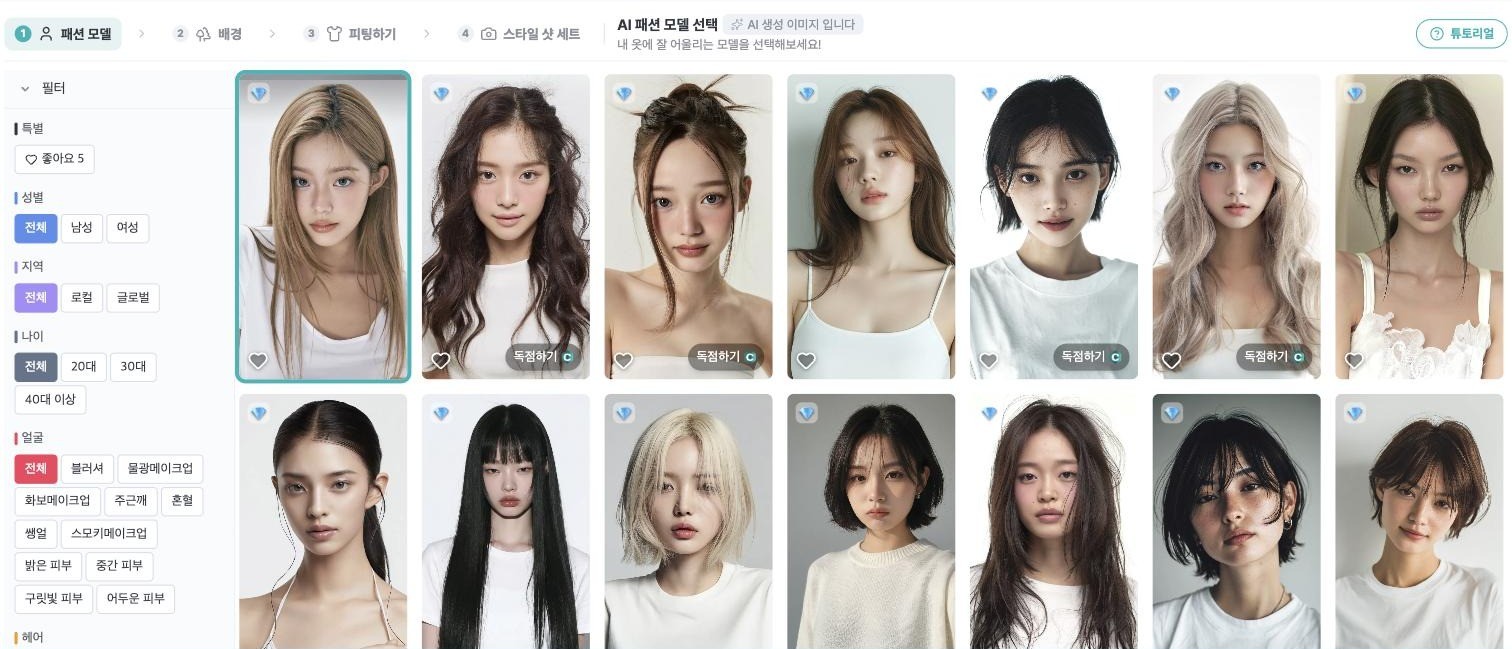
Then choose an AI model. It helps to settle on a model close to your brand's image first. You can narrow the list with gender, region, face and hair filters.

Choose freely from 15,000 backgrounds. Who says an underwear lookbook has to be shot indoors?
Tap the underwear tag in the background filter to see only backgrounds suited to underwear and homewear.


Underwear, beyond the indoors
Pick several backgrounds and your selections pile up on the right. You get one shot for each background you choose.

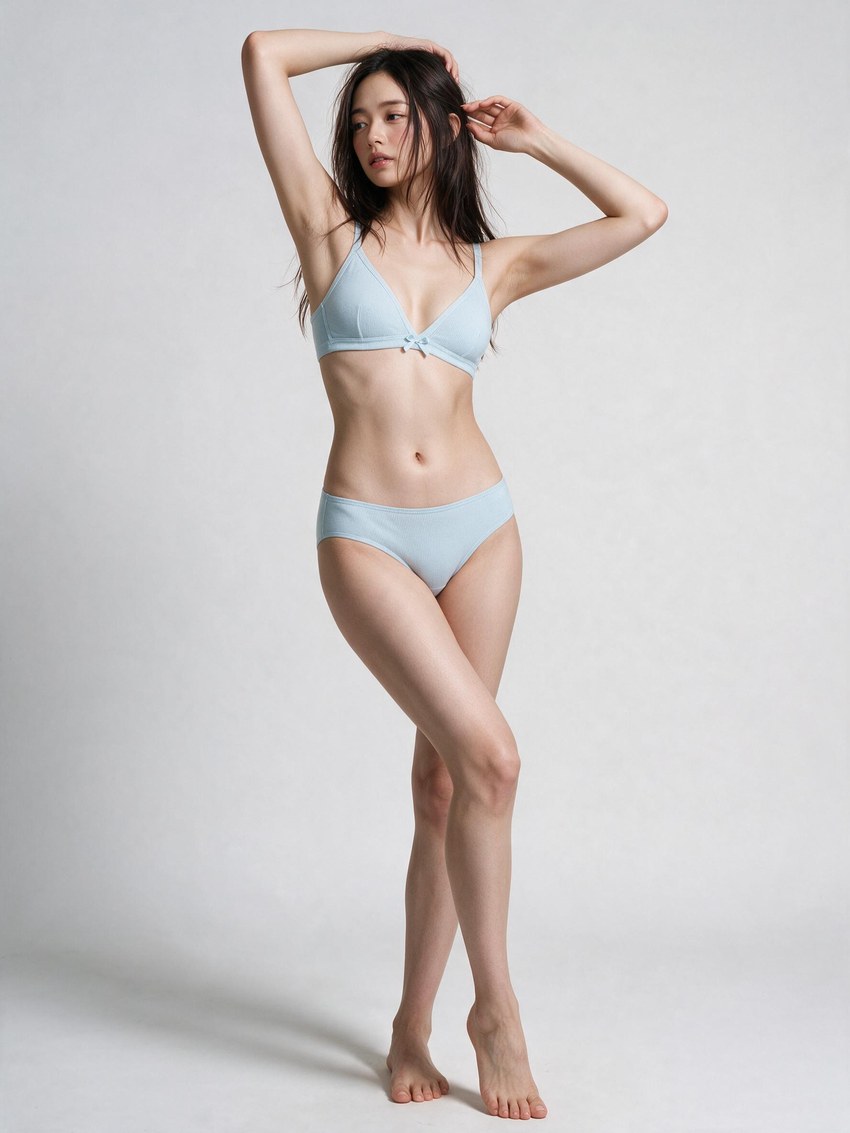
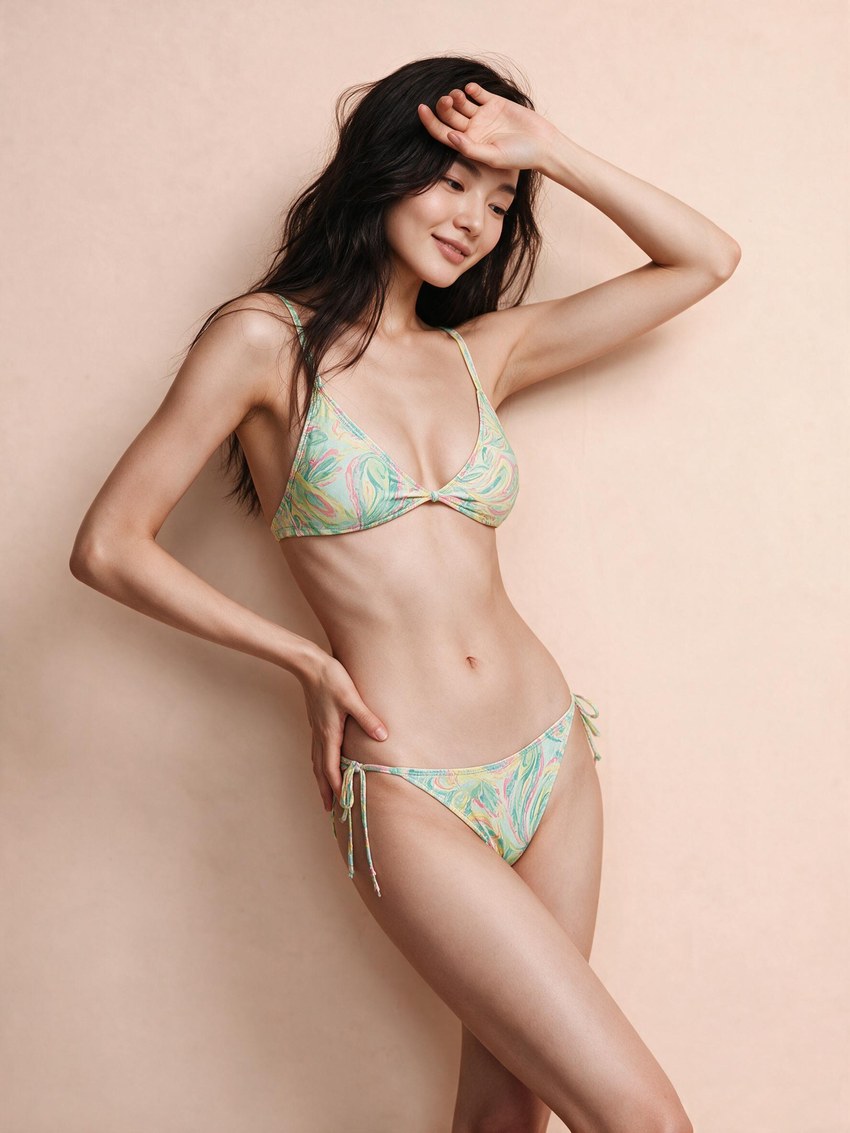
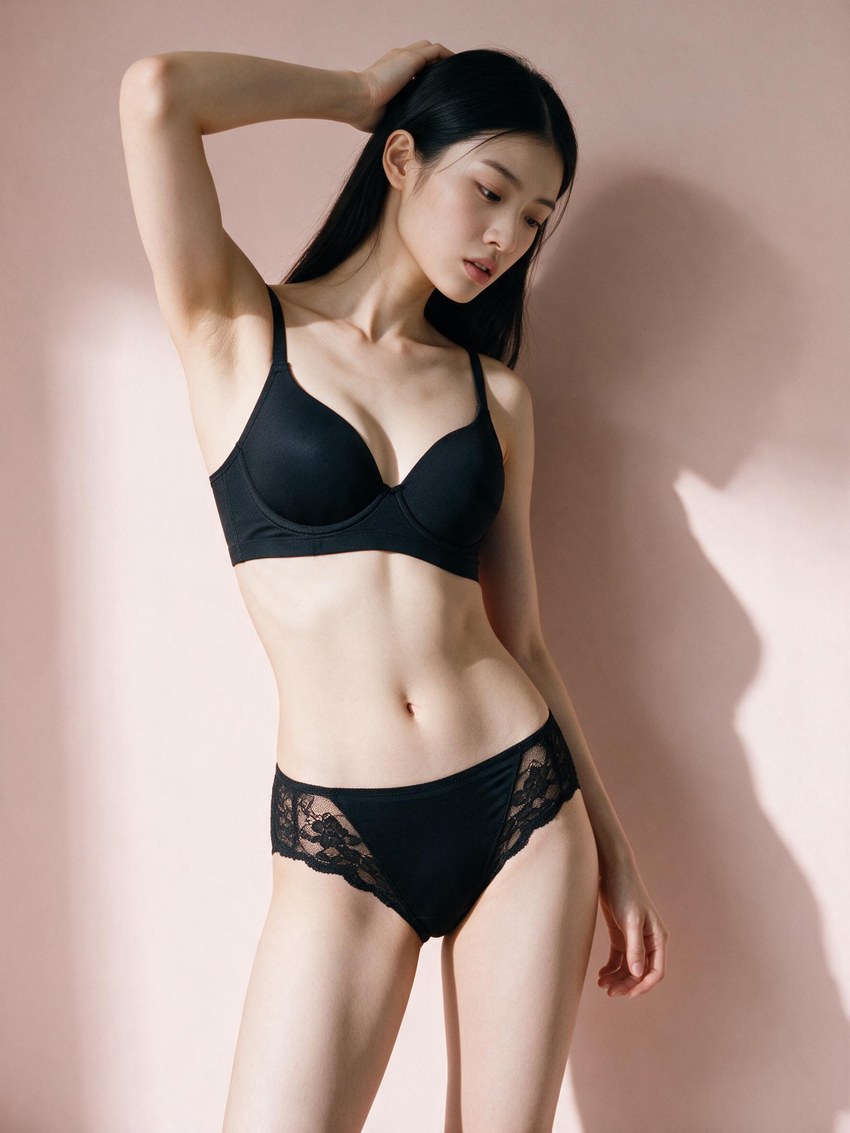
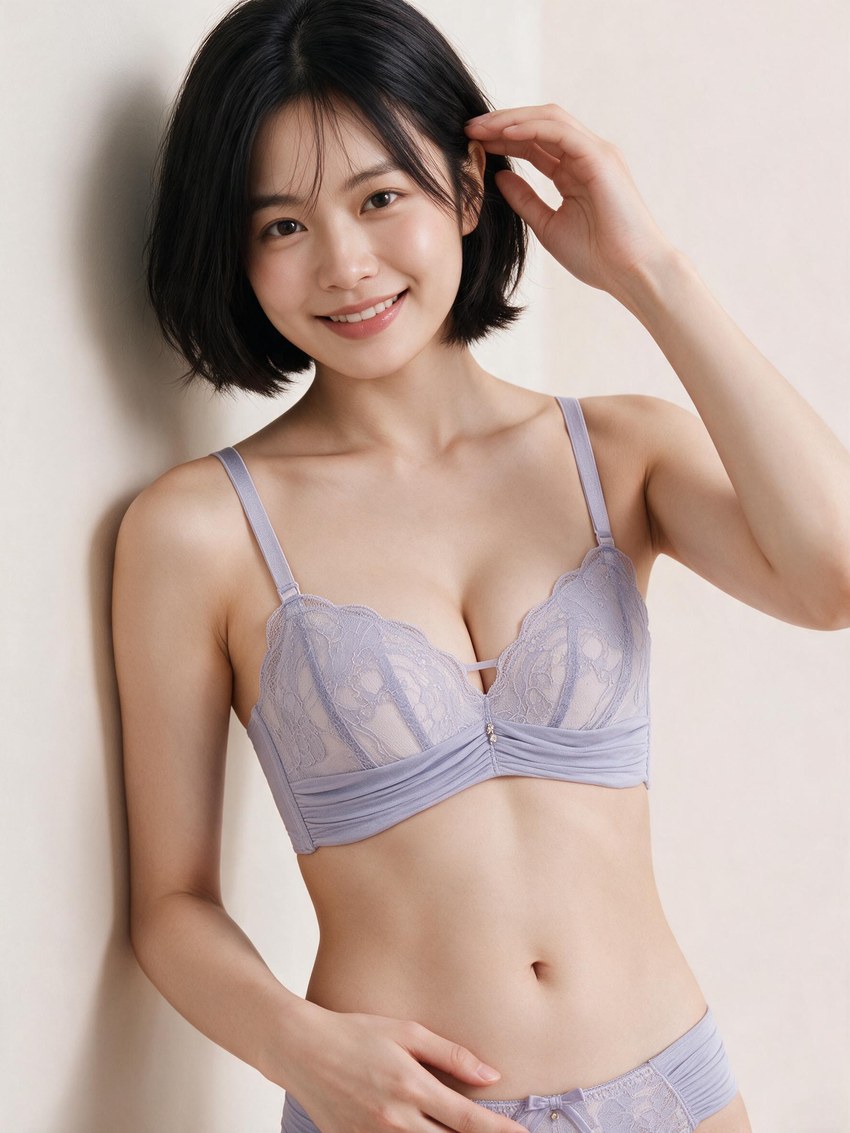
Choose the clothing image to put on the model. The tabs are split into tops and bottoms, dresses and sets, and accessories, so pick the one that fits your item.
You can upload your own image, or pick one of the samples below and it drops into the main slot. That's handy for a quick first try.

StyleRoom reads the garment you uploaded and summarizes its features. Check that they're right, and edit them if they aren't.
Once you've checked the Fitting Shot, a Style Shot Set is created with one shot for each background you chose.
Pick three backgrounds and you get three shots.


Same Fitting Shot, different backgrounds: a Style Shot Set
03 · FittingAlready have a Fitting Shot? Add shots by changing only the background
Open [Start from a Fitting Shot] and you'll see the 'Import StyleRoom Fitting Shot' card. Tap it to open a window where you can choose a sample Fitting Shot or one made in StyleRoom.

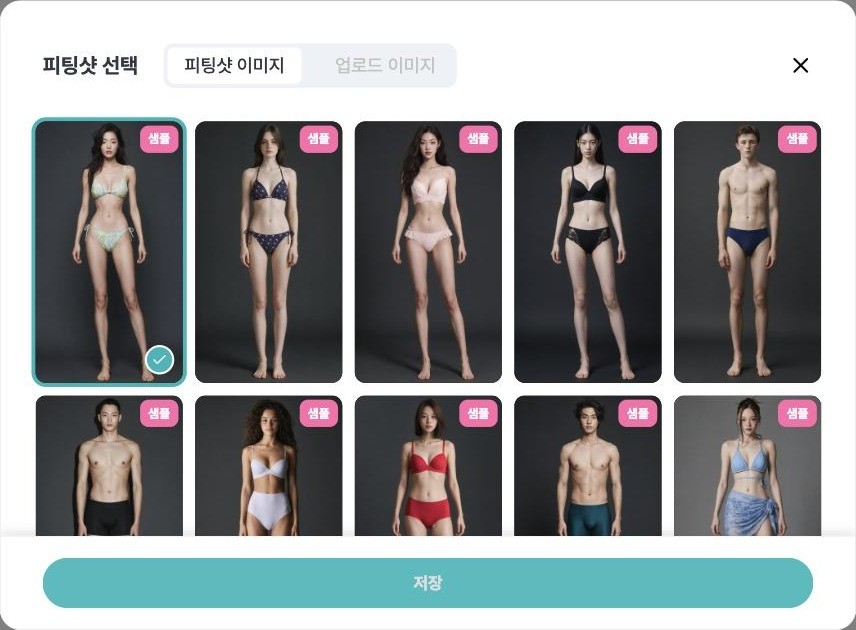
The samples include bikinis and bra-and-brief sets on female models, and underwear on male models. It's a good way to preview the look first.
It's handy when you want to add shots by changing only the seasonal concept, or try a new background.
The Fitting Shot stays the same. Only the scene changes.
04 · BeforeThe legacy Underwear / Bikini menu is still there
The method from our previous article is still in the menu as [Underwear / Bikini (Legacy)].
If you're used to it, keep using it, or alternate between the two and keep whichever suits you.
The new flow follows the same steps as Style Shot, so if you've used Style Shot for other clothing, you can pick up right where you left off.
05 · FAQUnderwear AI lookbook: frequently asked questions
Can I make an underwear (lingerie) AI lookbook or underwear model photos with StyleRoom?
Yes. Open the [Style Shot] menu and choose [Underwear / Bikini]. You can build underwear AI lookbooks and bikini product shots there.
How do I choose an underwear model?
In [Choose an Underwear Model], choose a front or back view first, then pick an AI fashion model. You can narrow the list with gender, region, face and hair filters.
How many shots can I make at once?
You get one shot for each background you choose, and you can make as many as you like at once.
Can I change only the background of a Fitting Shot I already made?
Yes. Choose [Start from a Fitting Shot], load a sample or a Fitting Shot made in StyleRoom, and begin at background selection.
Is the earlier underwear menu gone?
No. It's still in the menu as [Underwear / Bikini (Legacy)], the method covered in our previous article.
Underwear, like any other clothing.
Check the Fitting Shot, then swap backgrounds to build out your shots.
A single product photo is all you need to start.