On-model shots matter as much for accessory product pages as for clothing, right?
You only really get a feel for a hat once it's worn, or a bag once it's carried.
StyleRoom's Fashion Accessories menus have been updated.
The StyleRoom AI chat guide that first came to Hats is now in all 8 Fashion Accessory menus!
- WhatMake on-model or styled shots from a single accessory photo.
- WhereThe 8 menus under Fashion Accessories in the top Image menu.
- HowModel → accessory photo → outfit and background, answering the chat's questions.
- What's newAll 8 menus share the same screen and the same flow.
01 · WhatAll 8 Fashion Accessory menus, now in the same flow
Fashion Accessories has 8 menus: Hats, Hair Accessories, Shoes & Socks, Handbags & Bags, Accessory Set, Earrings & Necklaces, Rings, and Glasses & Sunglasses.
Now whichever menu you open, StyleRoom AI on the right guides you in the same order.
Once you know one menu, you can make the other accessories right away.

02 · HowTry it with glasses
The chat asks about gender, age group and region in turn.
Answer with the buttons and the filters on the left change to match, leaving only the models that fit.
Pick one model you like and select "Next" to move on to the accessory photo.
Select [Upload photo] in the chat and upload one clear photo.
If you have a close-up, uploading one more helps.
If not, just select [This is enough].

You can also choose in the chat whether to use the model's front or back view.
When you're ready, select "Start Feature Analysis".
AI looks over your accessory photo and sums up the material, color and details: "Here's what I see in your photo."
If it's right, select [That's right]. If anything's different, select [Something's off].
The field to fix opens right away.
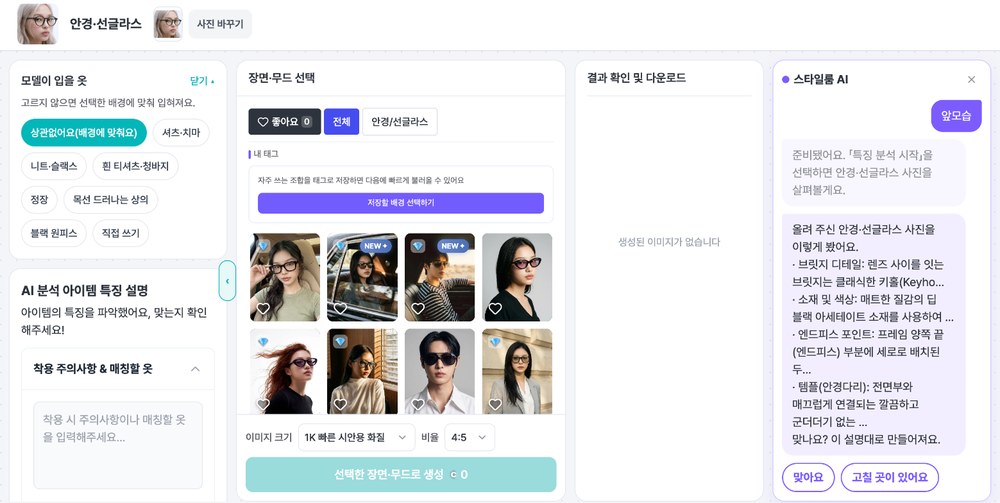
With this update, every accessory menu now has a "Model's outfit" card.
Pick common outfits like White tee · jeans, Black dress or Knit · slacks in one tap, or write your own.
If you don't choose, the outfit is matched to the selected background.

Finally, just pick backgrounds from the scene and mood list.
Pick several and one shot is made per background,
and the chat tells you how many shots and how many credits, so check it and select [Create N] to finish.
03 · TipEach accessory is a little different
The flow is the same, but the steps vary slightly to suit each accessory.
- Shoes & Socks, Rings These are styled shots with the accessory placed in a scene, so they start from the accessory photo with no model.
- Accessory Set It has 3 photo slots, so you can upload several pieces at once.
- Hair Accessories, Earrings & Necklaces Calm outfits like knits, shirts and open-neck tops come first so the accessory stands out.

04 · FAQFashion Accessories: frequently asked questions
Which menus can I use it in?
All 8 menus under Fashion Accessories in the top Image menu: Hats, Hair Accessories, Shoes & Socks, Handbags & Bags, Accessory Set, Earrings & Necklaces, Rings, and Glasses & Sunglasses.
Do I have to choose the model's outfit?
No.
If you don't choose, the outfit is matched to the selected background.
Only choose one when you have an outfit in mind.
What if AI saw the accessory differently?
Select "Something's off" in the chat and the field to fix opens for you.
After editing, select "Save" in that field and the shots are made from that description.
When are credits used?
Only when you select "Create N" at the end.
Before that, the chat tells you how many shots you'll make and how many credits it takes.
One accessory photo, all the way to an on-model shot.
Make on-model shots of your accessories for your product page today.