Style Shot is the menu where you pick a model, pick backgrounds and dress the model to make a set of model shots. With five steps, there may have been moments on your first visit when you wondered, "what do I select here?"
Now the 「StyleRoom AI」 chat sits on the right of the Style Shot screen. It tells you what to do at each step and has the button you need ready for you!
- WhatThe 「StyleRoom AI」 chat that tells you what to do at each step while you make Style Shots.
- WhereOn the right of the Style Shot 「Choose a Model」 and 「Start from a Fitting Shot」 screens (at the top on mobile).
- HowAnswer its questions with buttons, and the filters and selections on screen change along with you.
- NextFollow the chat from model → background → clothing → fitting → Style Shot set, and you're done.
01 · What「StyleRoom AI」, now next to the Style Shot screen
When you open 「Choose a Model」 in Style Shot, the 「StyleRoom AI」 chat is already open on the right. Its first message explains the overall order: fashion model → background → fitting → Style Shot set. Then it asks you the first question right away.
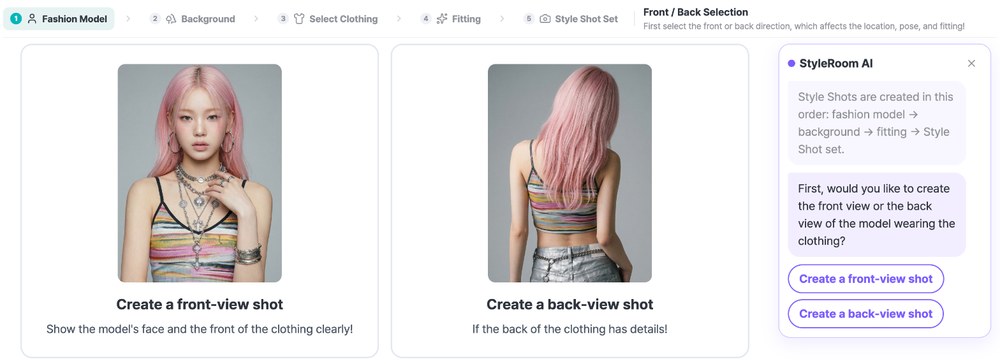
The buttons in the chat work exactly like the buttons on the screen. Whether you select [Create a front-view shot] in the chat or the card on the left, the result is the same.
02 · HowMake Style Shots by following the chat
It asks "What kind of model are you looking for?" and then asks about gender, age group and region in turn. When you answer with a button, the filters on the left change to match, leaving only the models that fit. If anything is fine, just select [Any].
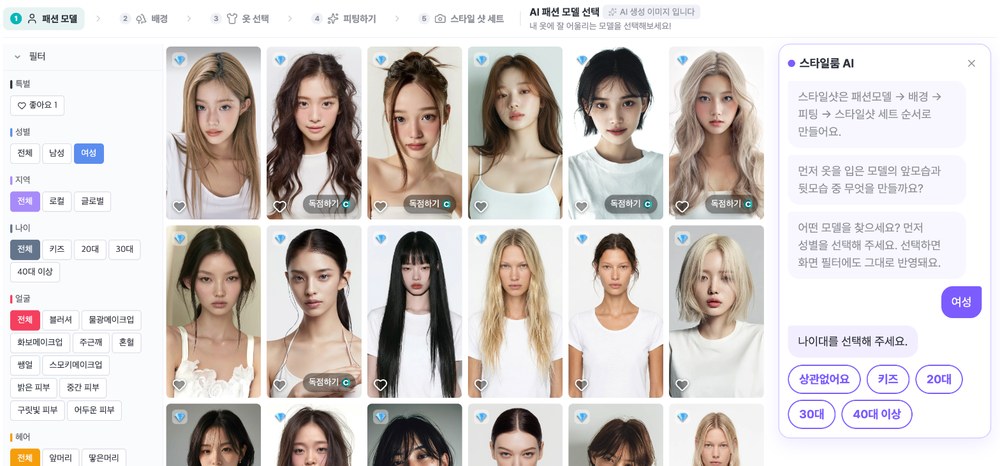
Once you pick a model, it also shares a few handy tips. Hover over a model to preview photos made with that model, and select the heart on models you use often to keep them under 「Liked」.
TIP. You don't have to answer every question. Change the filters on screen or pick a model first, and the chat will follow along!
Backgrounds work the same way. Choose the concept you're looking for to see only those backgrounds, then pick the ones you like. If you pick several, one shot is made for each background, all at once.
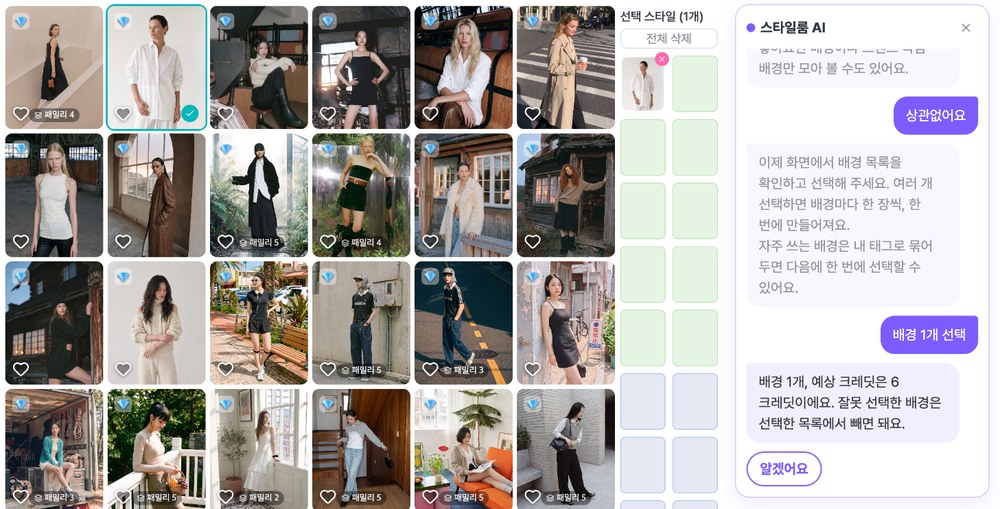
Each time you pick a background, the chat tells you how many you've picked and the estimated credits. You can check before you make anything, which is a relief.
Now it's time to add the clothing. Choose a clothing type (Top · Bottom, Dress · Set or Props), then drop samples into the clothing slots or upload your own clothing photos. To layer, use 「Layered」 next to the slot.

If you added a top but forgot the bottom, the chat tells you "Only one side is filled" and shows the [Pick bottom] button. Select it and you go straight to the bottom slot.
If you uploaded your own clothing, you first check the color, material and fit the AI analyzed. Writing down anything wrong or worth noting makes the result better. Next, do the fitting to dress the model, and if you like the result, select the button to make your Style Shots. You get as many as the backgrounds you picked.
When they're done, you can download them all right from the chat. You can also make more in the same style, or keep the fitting and make them again with different backgrounds.
03 · TipWant to close the chat?
Once you're comfortable with Style Shot and want to work without the chat, select ✕ at the top right. Once closed, it won't open automatically next time. When you want the guide again, select the 「AI Guide」 button at the top right of the screen.
04 · FAQStyle Shot 「StyleRoom AI」: frequently asked questions
Are credits used as soon as I select a button in the chat?
The chat buttons simply select the same buttons on the screen for you. At steps that use credits, credits are checked exactly as when you select the on-screen button, and a notice opens if you don't have enough.
Can I make Style Shots with just the screen, without the chat?
Yes. Select ✕ at the top right of the chat to close it. Once closed, it won't open automatically next time, and you can bring it back any time with the 「AI Guide」 button.
Do I have to answer the chat's questions?
No. You can change the filters on screen or pick a model or background first. The chat follows along and moves on to the next tip.
Does it guide me when I start from a Fitting Shot I already made?
Yes. In 「Start from a Fitting Shot」, the same chat guides you from picking backgrounds to making Style Shots.
Even on your first try, we're right beside you.
Make your first model shot in Style Shot today.