New items keep coming, but booking a model shoot for every piece isn't easy, right?
StyleRoom's Bulk Generation Service is a service where our experts create model shots in bulk from just your clothing photos.
The Bulk Generation Service editor has just been updated.
Items, models and backgrounds are connected by lines so you can see everything at a glance, and StyleRoom AI guides you at every step!
- WhatUpload clothing photos, and our experts make 5 model shots per item.
- WhereBulk Generation Service under "Bulk · Automation" in the top menu.
- HowJust connect lines from clothing → shoot set (model + background).
- WhenYou receive the finished photos within 2–3 business days of your request.
01 · UploadStart by uploading clothing photos
Create a new request in the Bulk Generation Service and the clothing image upload screen opens.
You can select several clothing photos at once.
Flat-lay shots, mannequin shots and photos of models wearing the clothes all work.
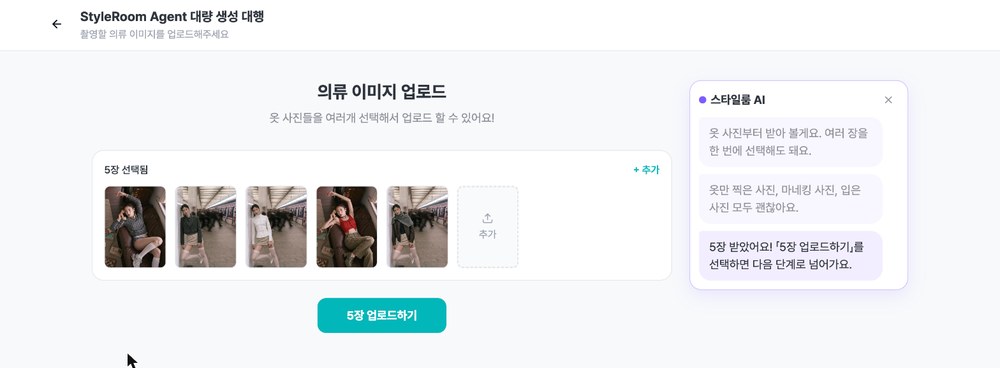
Once you pick photos, the chat confirms right away, like "Got 5 photos!"
Select upload to move on to the editor.
02 · EditThe new editor: connect with lines
The editor is split into the clothing list on the left and shoot sets in the middle.
One set is a pairing of one model and one background.
The circle on the right of each item is connected to a set by a line, so you can see which model and background each item will be made with at a glance.
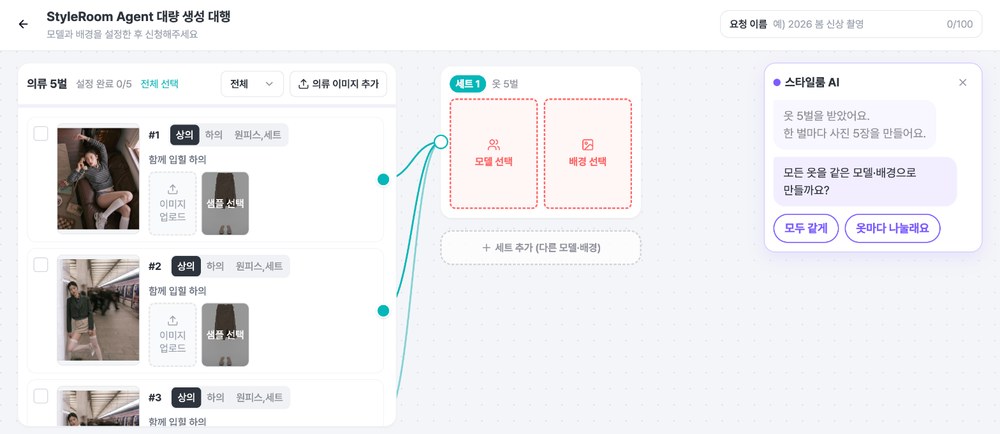
The chat's first question is "Use the same model and background for all items?"
Select [Same for all], and you only need to set Set 1's model and background.
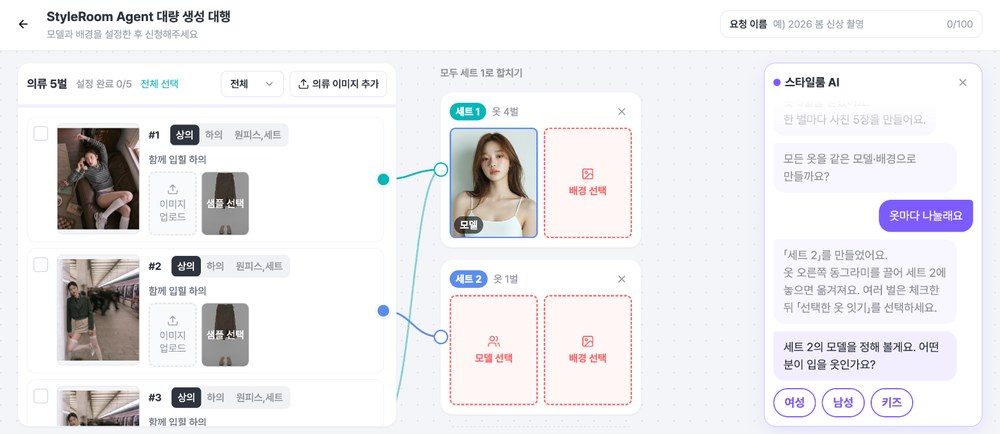
Select [Split by item] and "Set 2" is created.
Drag the circle on the right of an item onto Set 2 to move it there.
To move several at once, check the items and select "Link selected items".
TIP. On mobile, select the "Set 1" tag at the top right of an item to change its set!
03 · SetModels and backgrounds, step by step in the chat
Now set a model and background for each set.
The chat asks "Who will wear these clothes?" and then about gender, age group and model look in turn.
Choose your answers and it shows only the models that match.
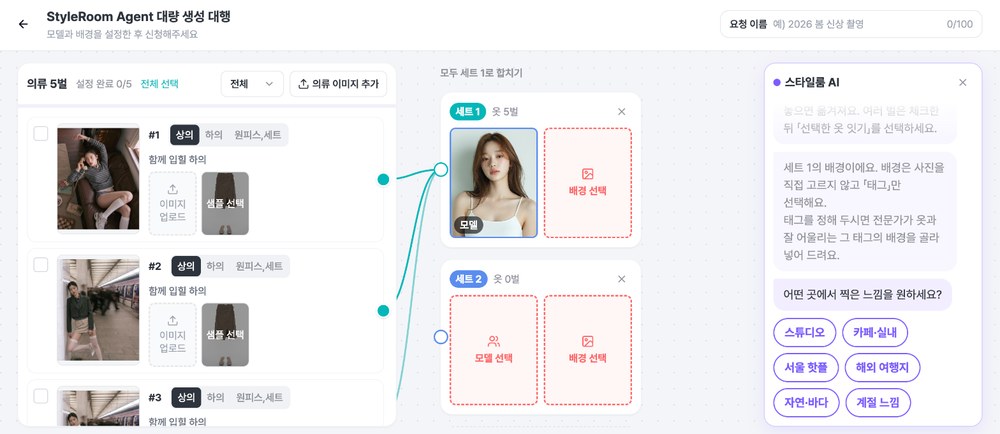
For backgrounds, you choose a tag instead of a specific photo.
Once you set a tag, our experts pick a background within that tag that suits each item.
Choose the mood you want, such as studio or café/indoor, and the most popular tag is selected first.
04 · SubmitSubmit and receive the finished photos
When everything is ready, the chat sums up how many items and photos you have.
If an item still needs a piece to pair with, like a top and bottom, it takes you straight to that item.
Select "Submit" to finish your request, and you'll receive the finished photos within 2–3 business days.
Your edits are saved as a draft automatically.
You can leave and come back to keep editing anytime.
05 · FAQBulk Generation Service: frequently asked questions
Who makes the photos?
StyleRoom experts make them for you.
You just upload clothing photos and choose a model and background tag.
When will I get the finished photos?
Within 2–3 business days of your request.
Weekends and holidays aren't counted, and larger orders may take a little longer.
Can I pick the background photo myself?
Backgrounds are set by tag instead of by photo.
Once you set a tag, our experts pick a background within that tag that suits each item.
How much does it cost?
You can check prices by image size in the pricing section at the top of the Bulk Generation Service page.
You can also select "How much is it?" in the chat.
Just upload clothing photos. We'll take care of the model shots.
Hand over this season's new arrivals all at once with the Bulk Generation Service.