The model's expression and the fit of the outfit are just right, but the background doesn't match the season or looks a bit busy, doesn't it?
No need to reshoot. With StyleRoom Background Swap, keep that exact model shot and change only the background!
- WhatBackground Swap keeps the model, outfit, and pose as they are and lets AI change only the background.
- StartIn the top menu [Image], under “Image Swap”, choose [Swap Background Only]. You can also start from the new-feature card on Home.
- HowChoose a model shot, then set the new background in one of three ways.
- ResultYou get 1 image with only the background changed at a time, saved to your history.
01 · WhenWhen to use Background Swap
Model shots made in StyleRoom work, and so do photos you took yourself. It starts right from a photo you already have.
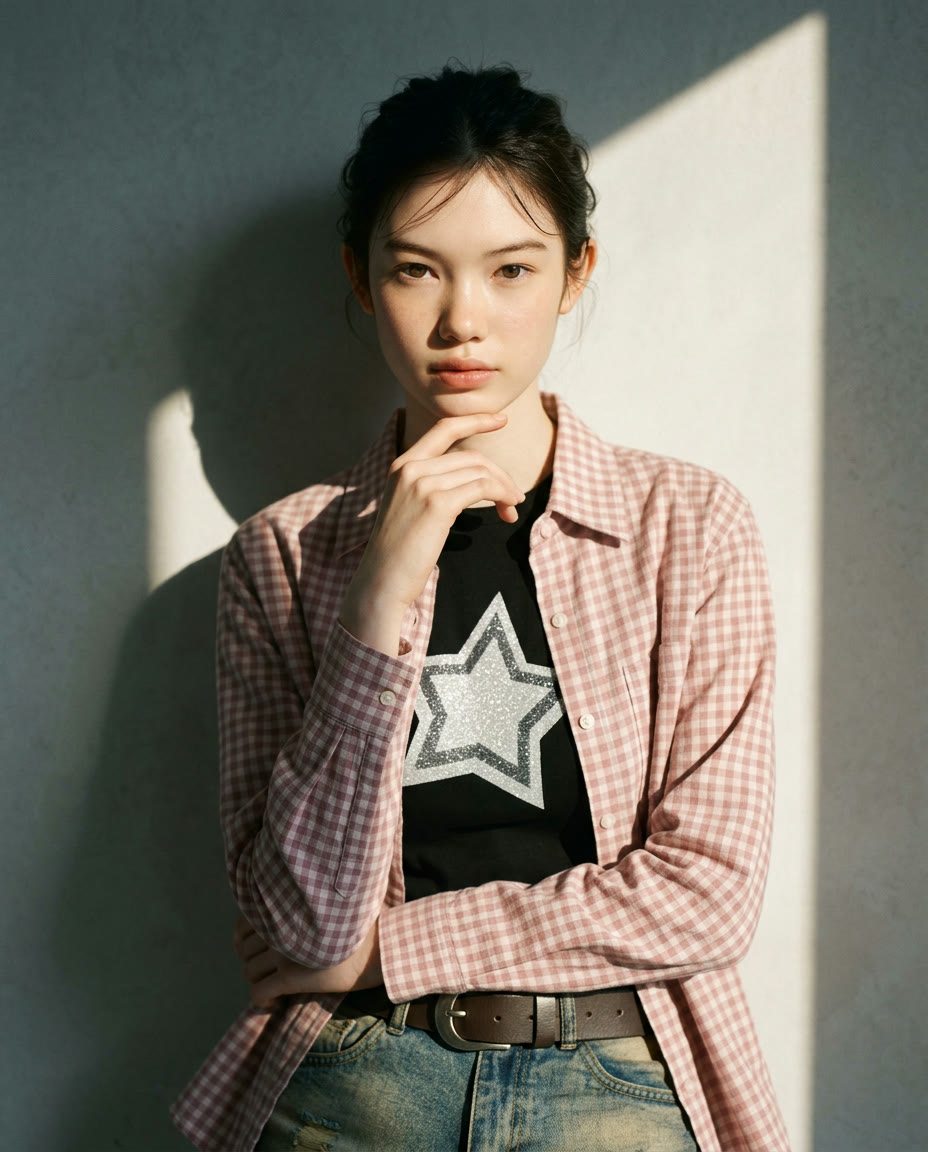
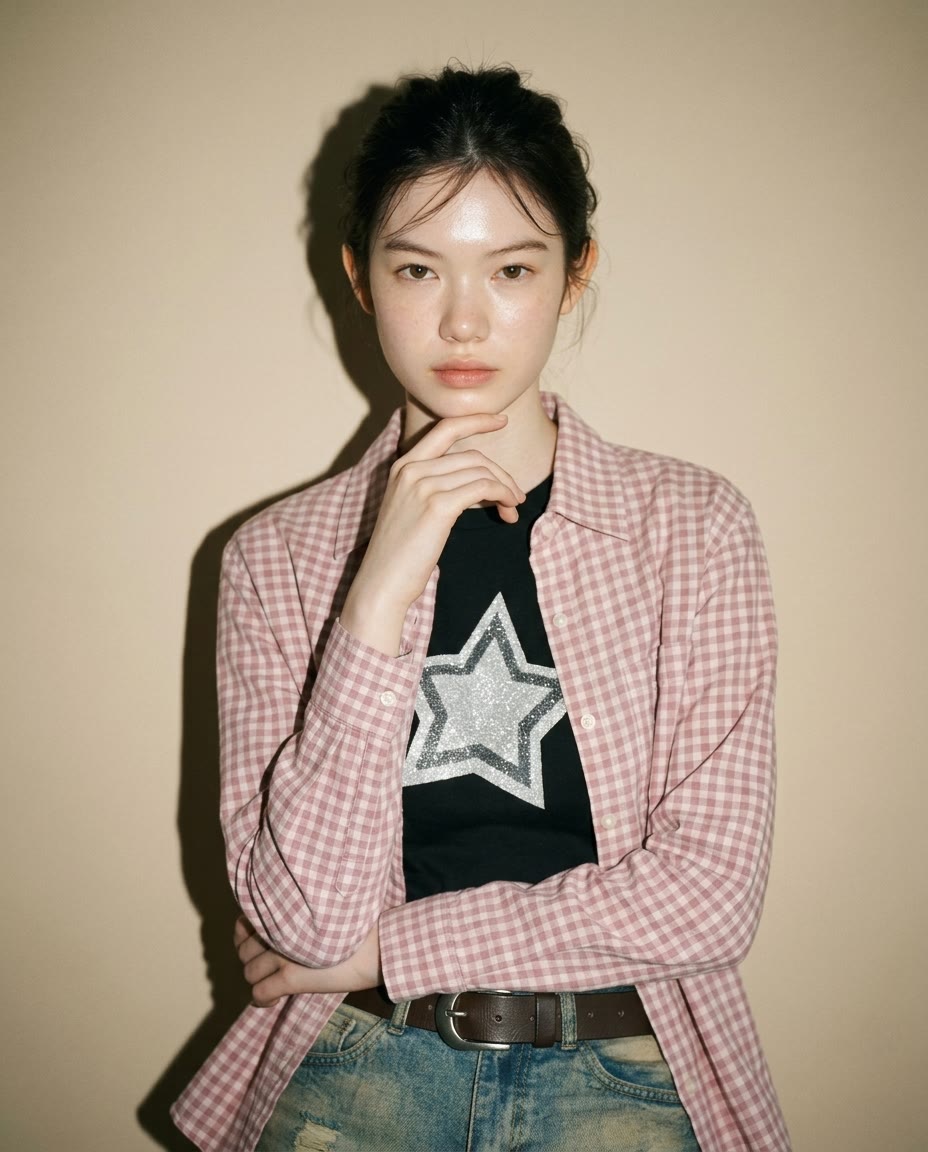
Clean up a messy in-store shot. A quick try-on shot taken in the store, with the rack and boxes showing behind? Swap only the background and it's ready for the product page.
Reuse last season's lookbook. If an outfit from last season's lookbook still sells this season, don't reshoot. Just swap the background to the new season's mood.
Give each channel its own mood. A clean studio for the product page, a stylish outdoor scene for Instagram. Use the same model shot differently on every channel.
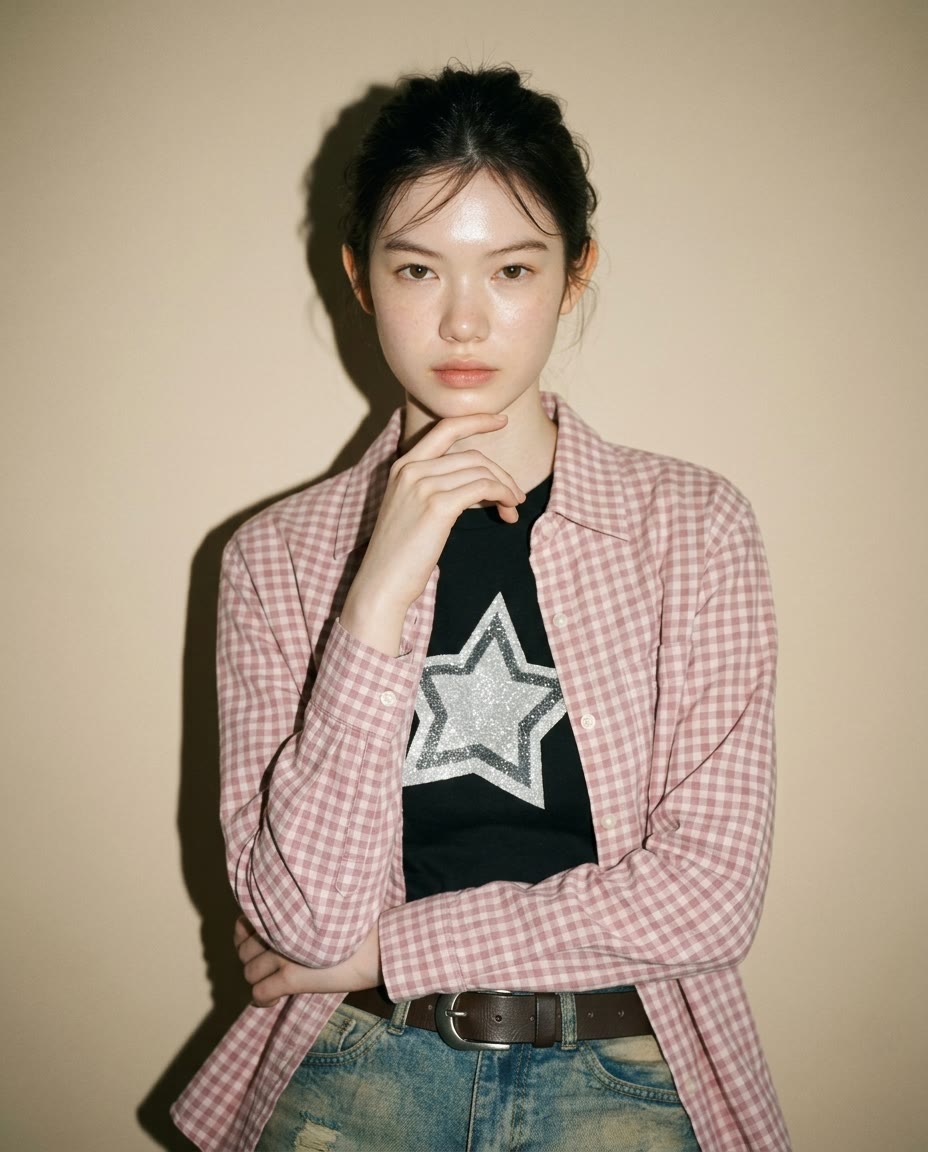
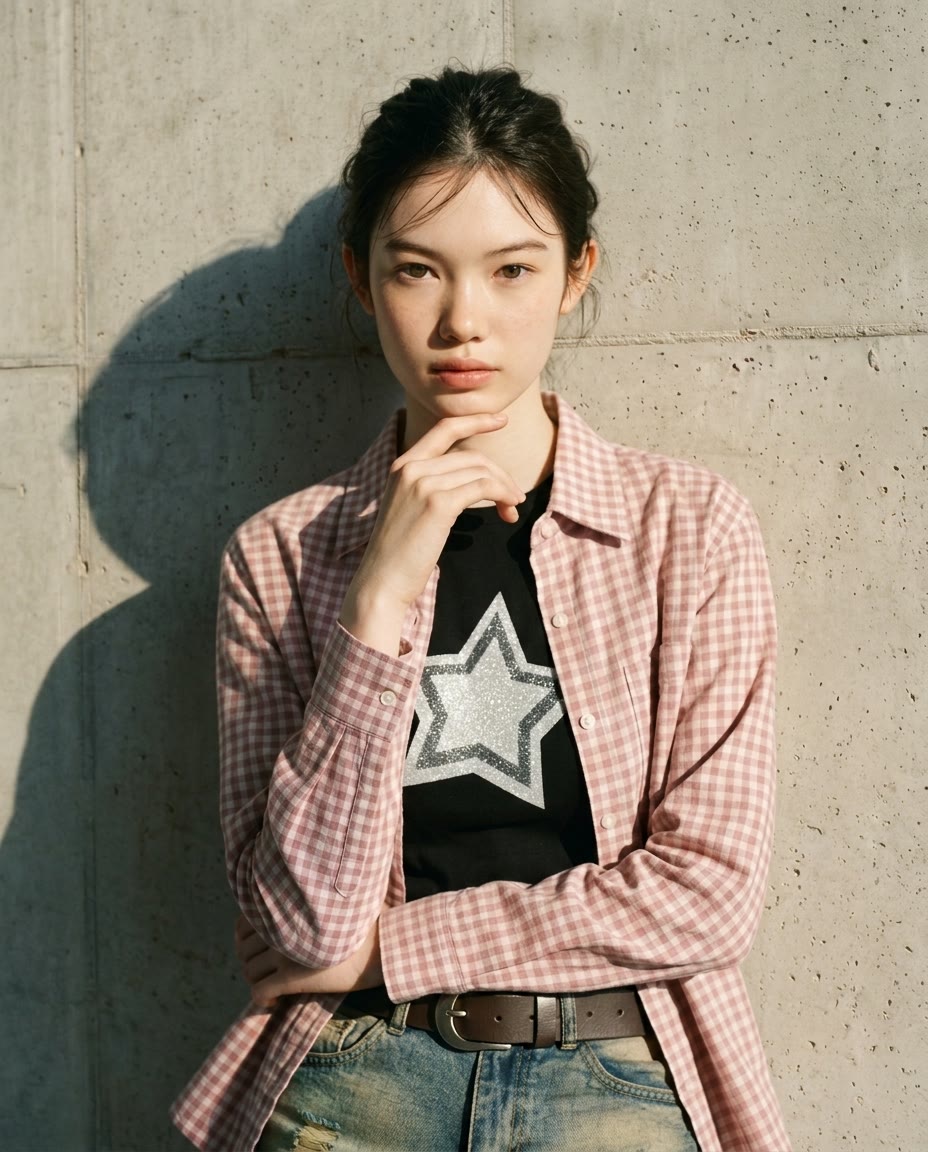
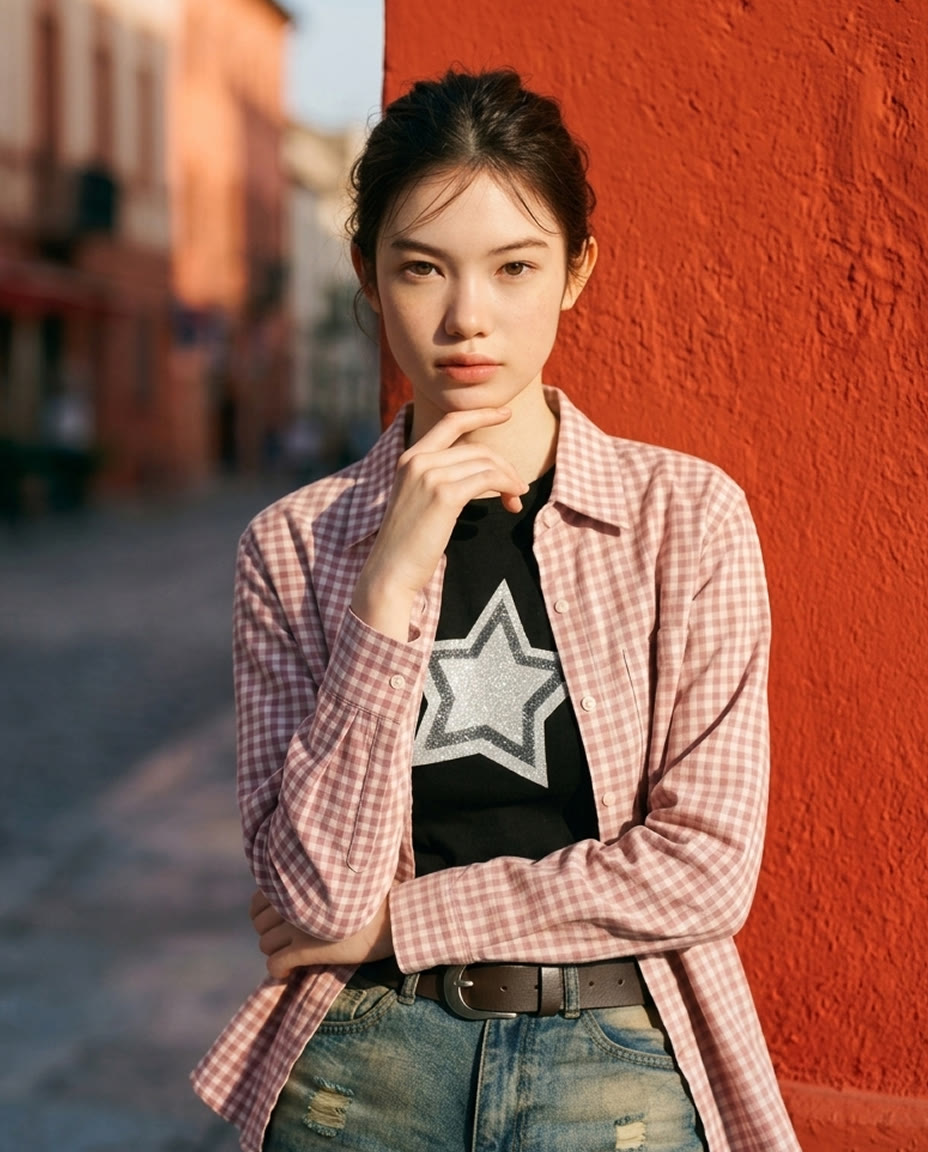
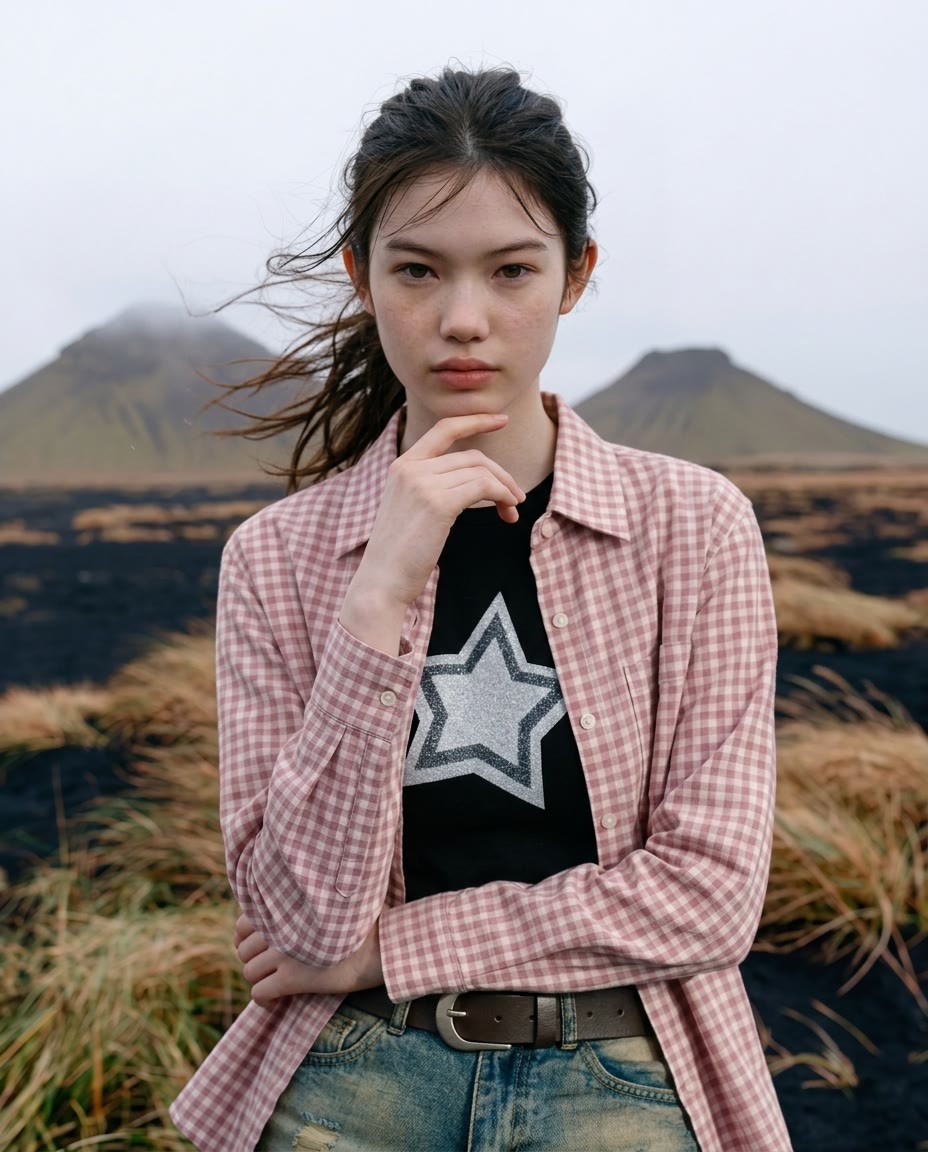
Four backgrounds made from one model shot
02 · HowHow to use Background Swap
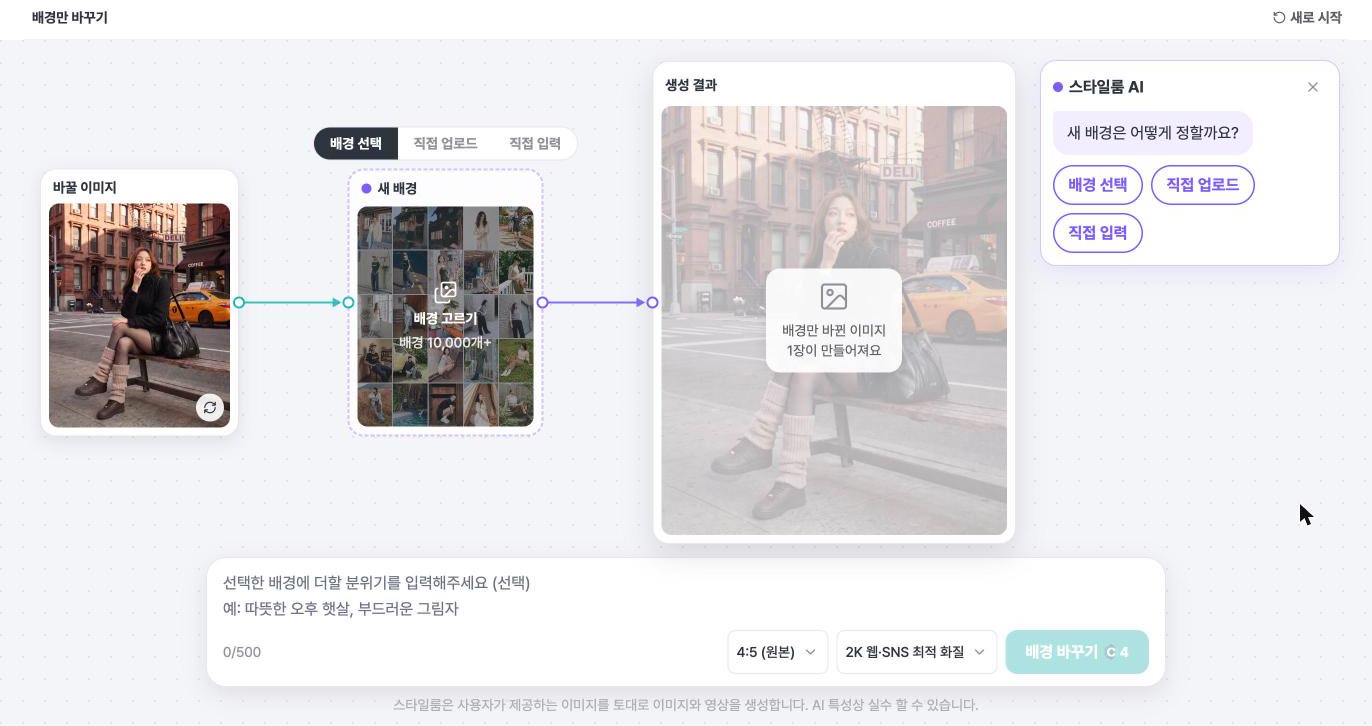
Open the top menu [Image] and, under “Image Swap”, choose [Swap Background Only]. “StyleRoom AI” beside the screen guides you step by step like a chat, so just follow along.
Pick a model shot from your history, or add your own photo with [Upload my image].
When it asks “How would you like to set the new background?”, choose [Choose background], [Upload], or [Describe it]. We compare the three ways in 03 below.
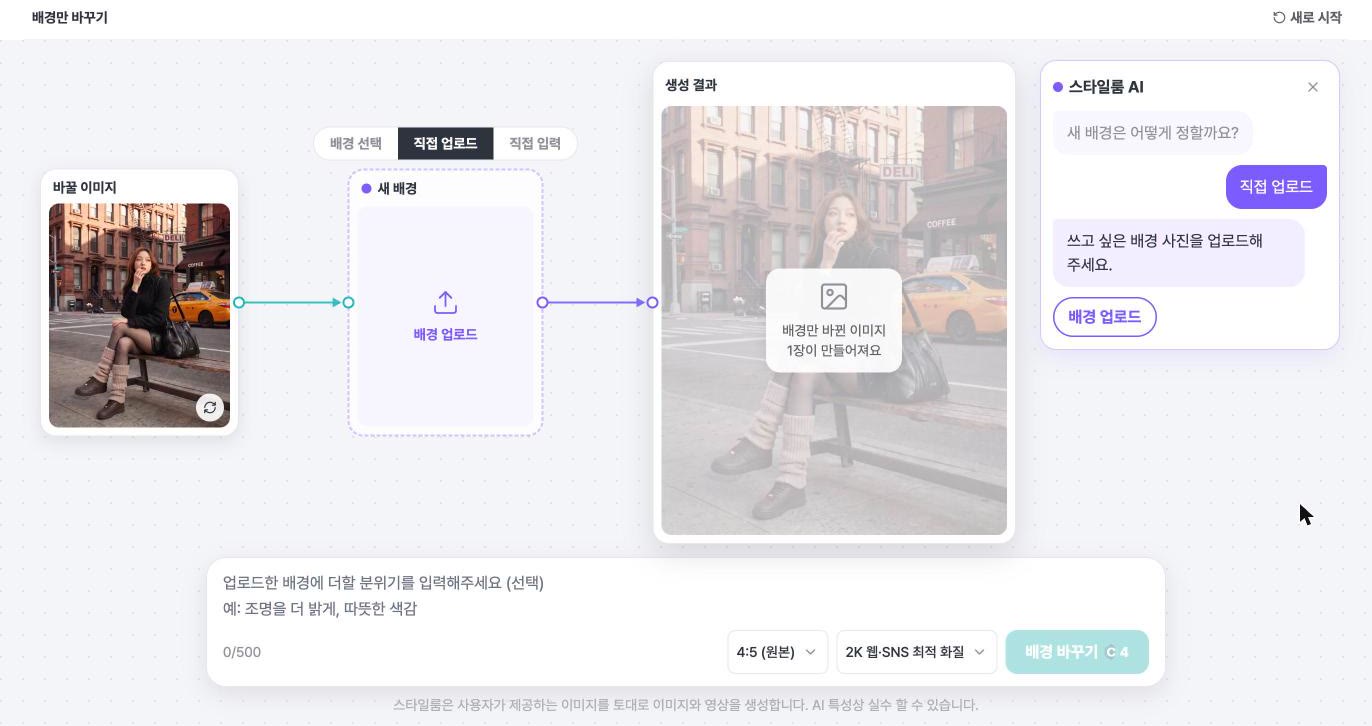
If you chose [Choose background] or [Upload], write the mood you want in the box below. For example, ‘warm afternoon sunlight, soft shadows’. You can leave it empty.
If you chose [Describe it], write the background you want in this box.
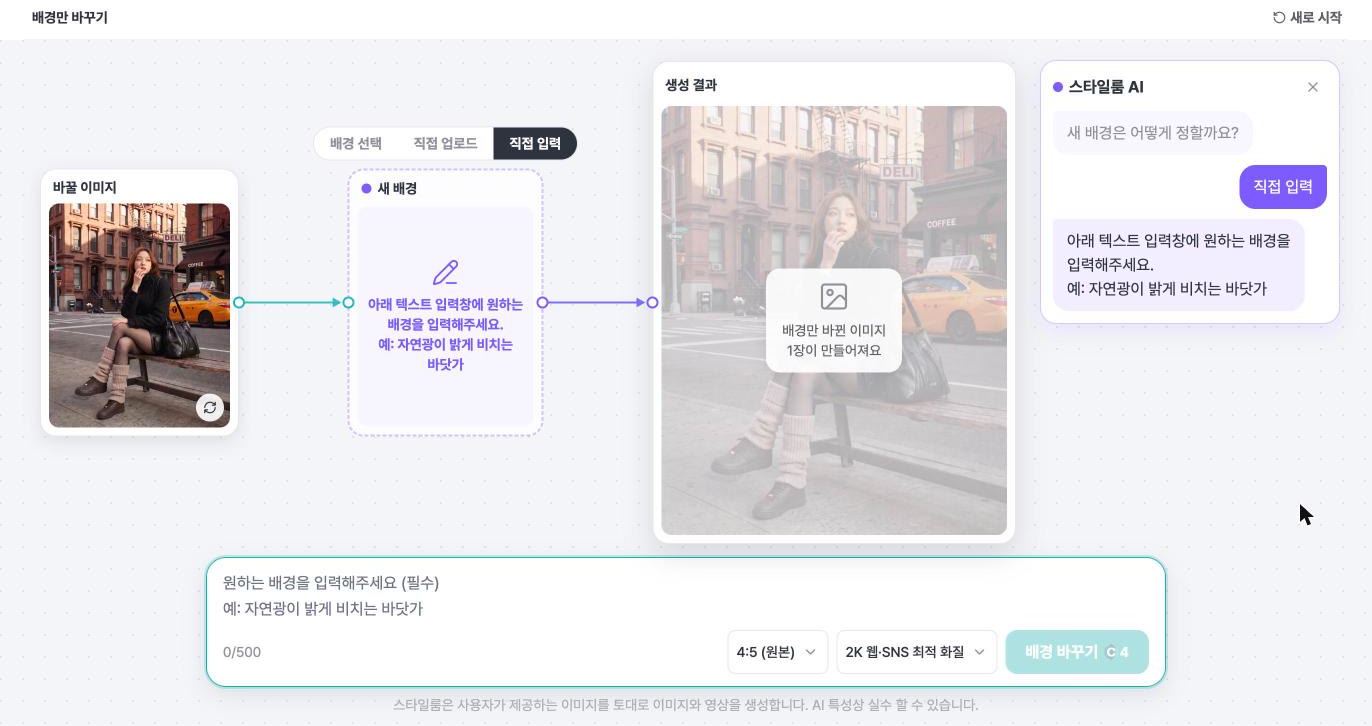
Choose 1K, 2K, or 4K, whichever fits where you'll use it.
Select [Swap background] and 1 image with only the background changed is made. It's fine to leave the screen while it runs, because it's saved to your history!
If it ever fails, the credits you used come back automatically.
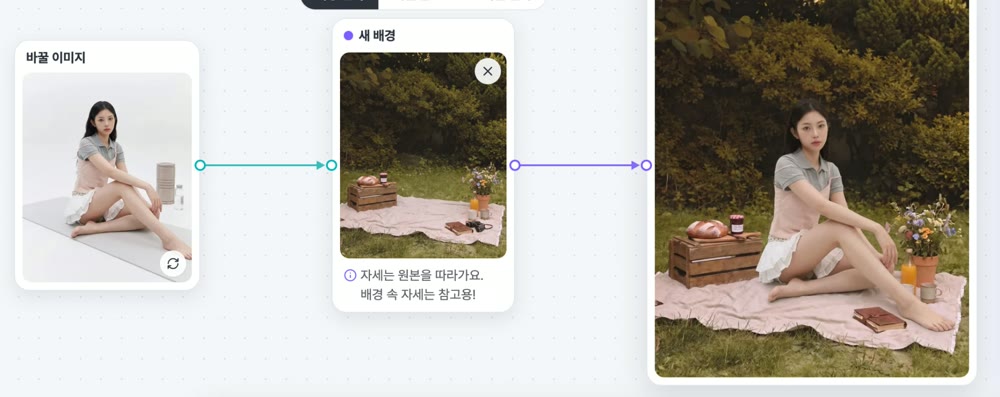
Once the first result is in, the button changes to [Make again]. Want one more? Select [Make again]. You can flip through your results to compare them and download the ones you like right away.
03 · BackgroundAI background swap: 3 ways to set the background
There are three ways to set the new background, so choose based on how clearly you already picture it.
| Way | How it works | Good when |
|---|---|---|
| Choose background | Pick from 10,000+ StyleRoom backgrounds | You want to browse and decide |
| Upload | Upload a background photo you want to use | You have a set place, like a store or showroom |
| Describe it | Describe the background in text | You already picture a scene (e.g. a beach in bright natural light) |
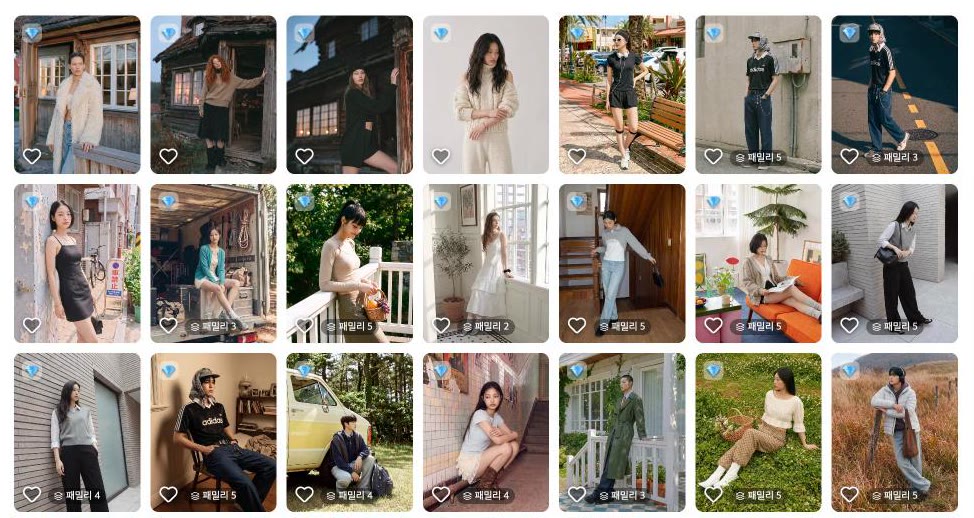
Backgrounds you add with [Upload] stay in “My background photos”. Next time you want the same background, just pick it, no need to upload it again.
04 · TipTips for a model shot and background that match
TIP. The pose of the model in the background photo is for reference only. The pose follows your original model shot, so choose a background that suits your model shot's pose!
Choose a background that suits the model shot. For a full-length standing shot, pick a background where the floor is visible. For an upper-body shot, pick a close-up background. A similar composition looks more natural.
Use the mood box. If you like a background but want to nudge the feel, write it in the mood box. Short is enough, like ‘warm afternoon sunlight, soft shadows’ or ‘brighter lighting, warm tones’.
Make a few and compare. Make two or three with [Make again] and flip through them. It's easier to pick the one that fits best.
05 · FAQBackground Swap FAQ
Can I change the background of a photo I took myself?
Yes. Just add your photo with [Upload my image]. Model shots made in StyleRoom are right there to pick from your history.
Does the pose in the background photo carry over?
No. The pose follows your original model shot. The pose in a background photo is for reference only.
Which plans can use Background Swap?
Backgrounds you upload and backgrounds you describe in text work on any plan. Premium-only backgrounds need the Premium plan. You need to be logged in to make one.
How many credits does it cost?
1K costs 2 credits, 2K costs 4 credits, and 4K costs 8 credits per image.
Where can I see my results again?
They are saved to your history. It's fine to leave the screen while one is being made.
Same model shot, new background.
Give a shot that turned out well the mood of this season.