A short video for the product page, an on-model clip for Instagram Reels... shooting each one every time is a lot, isn't it?
With StyleRoom Video, you just pick a template and add your photos!
- WhatThe StyleRoom Video menu makes fashion videos of a model wearing your outfit, starting from a template.
- StartIt's [Video] in the top menu. Everything from picking a template to generating happens on one screen.
- HowSelect a template, then add your own photos or a character sheet as references.
- ResultYour videos collect in [History], and you can remake one with the same text and settings.
01 · TemplateStyleRoom Video templates: the kinds of videos you can make
These are the template videos on the right side of the StyleRoom Video screen. Start by picking a mood you like.
StyleRoom Video template videos
There's everything from a close-up showing the knit texture to an outdoor clip with clothes fluttering in the wind.
When you select a template, the scene description and Length · Aspect ratio · Resolution used for that video are filled in on the left as they are. All that's left is adding your photos.
02 · HowHow to use StyleRoom Video
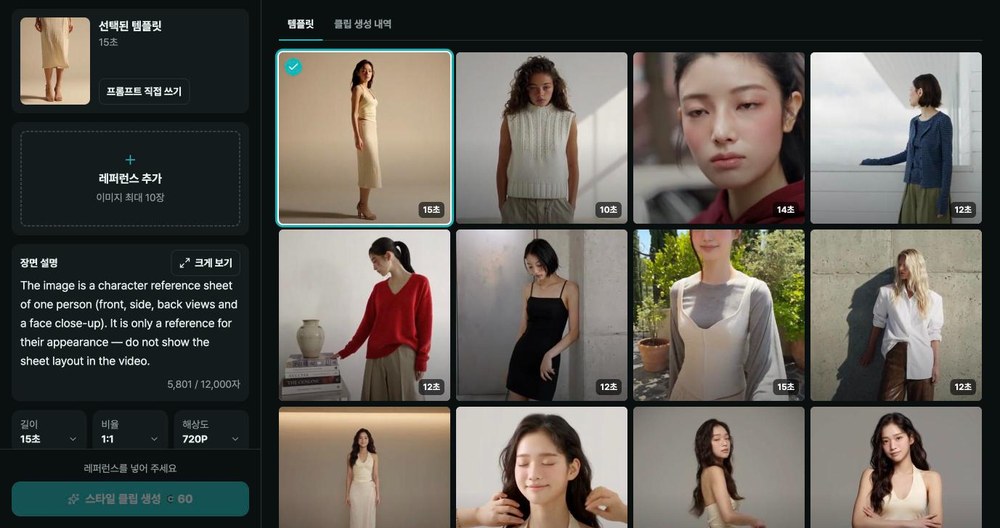
Select [Video] in the top menu. The left side is where you make videos, and the right side has the templates and your [History].
Select a video you like from the templates on the right. The scene description and Length · Aspect ratio · Resolution are filled in just like the template.
If you'd rather start from scratch without a template, select [Write my own prompt].
Select [Add reference] and the [Select references] window opens with [My images] and [Character sheets] tabs.
[My images] gathers the images you made in StyleRoom by date, and you can also upload photos from your computer right there. In total, you can add up to 10.

If you selected a template, the scene description is already filled in. Just change the parts you want to edit.
In the scene description, type @ to call up the photos you added as Image 1, Image 2 and so on. When the text gets long, [View larger] gives you more room to edit.
Check Length · Aspect ratio · Resolution and select [Generate style clip]. The credits needed are shown on the button.
If a generation fails, your credits are refunded automatically, so don't worry!
TIP. Your videos collect in [History]. In the larger view, select [Reuse this text and settings] and the same scene description and settings are filled in on the left again. Swap only the photos and make one more video with a different outfit.
03 · Character SheetKeep outfit and model details intact with a character sheet
A character sheet is a single image that gathers one model's front, left and right, and back views.
Add one as a reference and the outfit and the model's details stay intact even while the video moves.
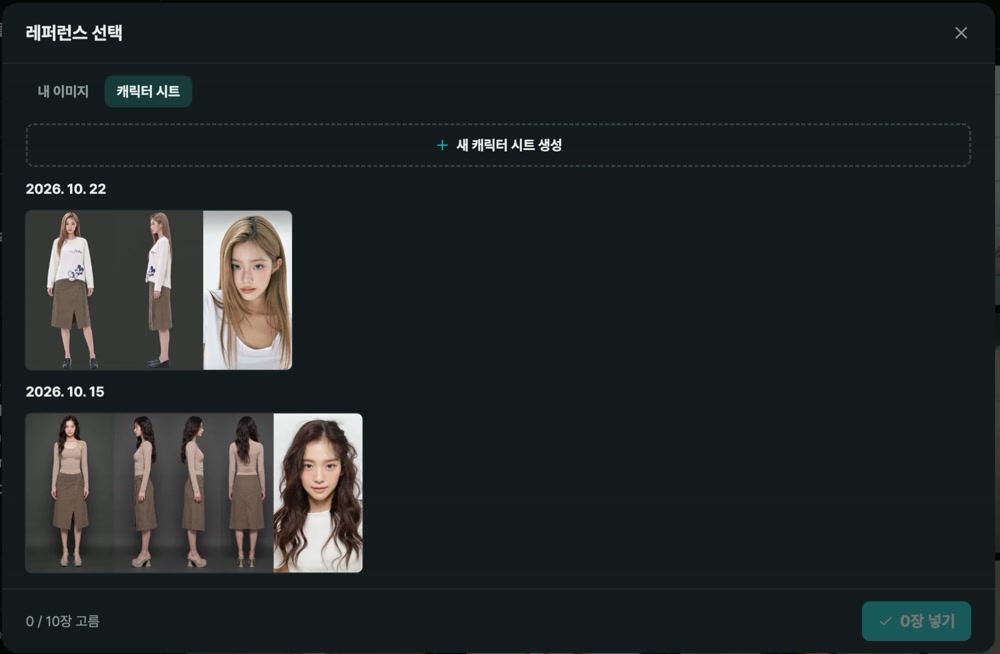
No character sheet yet? No problem. Select [New character sheet] in the [Character sheets] tab and you can make one right away without leaving the video screen.
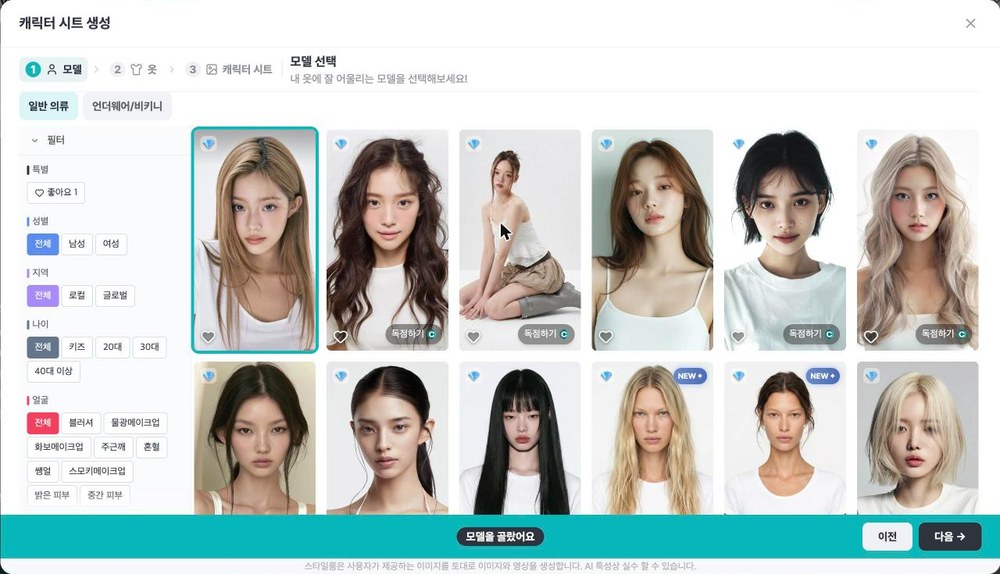
Pick a model, add a photo of the clothes, and choose the directions to make. The front is always included, and you can pick left, right and back as needed.
While it's being made the window closes, and once it's done the sheet goes straight into your references. Use the wait to polish the scene description!
04 · MoreJump straight into StyleRoom Video from other menus
You don't have to start from the [Video] menu. You can go straight from a photo you've already made to a video.
| Start from | Use | How it continues |
|---|---|---|
| Gallery | [Create Clip] in the image details | StyleRoom Video opens with that photo already in your references |
| Horizon Set | [Make a Style Clip] | Make a character sheet from the Horizon shots you picked, then go straight to making the video |
We cover how to continue from Horizon Set in detail in the Horizon Set guide.
05 · FAQStyleRoom Video FAQ
Which plan do I need to use StyleRoom Video?
StyleRoom Video and character sheet creation are available on the Premium plan.
Can I make a video without a template?
Yes. Select [Write my own prompt] and describe the scene and the movement yourself.
How many references can I add?
Up to 10. You can mix images made in StyleRoom, photos you upload yourself, and character sheets.
Do I need a character sheet?
No. You can make a clip with just your own photos. But if you want to keep the outfit and the model's details intact, add a character sheet too.
What happens to my credits if a generation fails?
If a generation fails, your credits are refunded automatically.
One template, a few of your photos, one fashion video.
Made your new-arrival photos? Carry on to video in StyleRoom too.