Front, side and back shots for the product page, a different main image ratio for every marketplace, Instagram Reels on top… shooting and cropping all of that every time is a chore, right?
With StyleRoom, one outfit now gets you a full set of 8-angle horizon shots!
- WhatHorizon Set turns the same model and the same outfit into 8-angle horizon shots, all on one background color.
- Where[Create a new set] under [Horizon Set] in the top menu.
- HowPick the model, clothes, angles and background color, then build from the front shot.
- Result8-angle shots, an Overview and crops like three-quarter, top, bottoms and shoes, in the ratios you want. The crops are free.
01 · NewHorizon Set: 8-angle horizon shots in one set
Here is a Horizon Set made from a single varsity jacket.
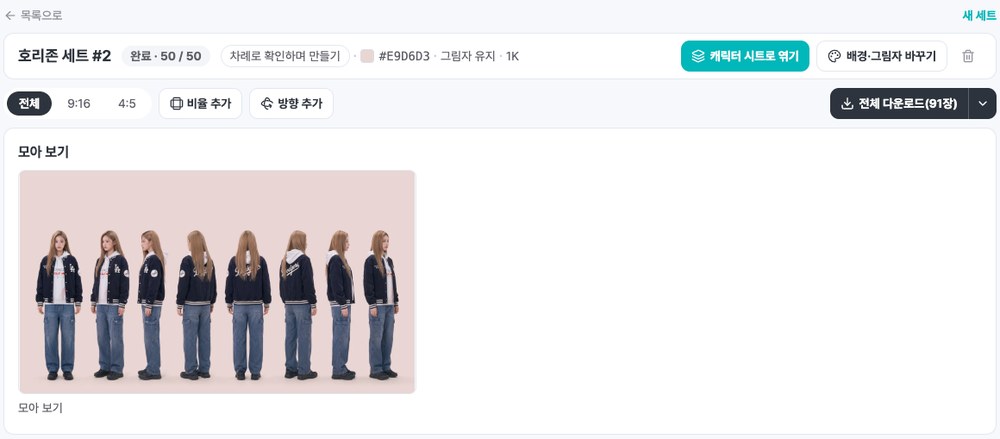

Pretty neat, right?
All the way around, the background color, the model, the logo and the back lettering stay the same.
For an online store, here is where it shines. ⬇️⬇️⬇️
| When | Try this |
|---|---|
| Product page | Line up the 8 angles from the front like a full turn |
| Marketplace main images | Get every marketplace ratio at once, like 5:6 for MUSINSA, 1:1 for Naver Smart Store and 3:4 for W CONCEPT |
| 4:5 for the feed, 9:16 for Stories and Reels | |
| Lineup comparison | Put colorways side by side with the 8-angle Overview |
02 · HowHow to use Horizon Set
Click [Create a new set] under [Horizon Set] in the top menu.
Choose a model, pick [Top + Bottom] or [Dress], and add your clothing photos.
Drop several photos at once and they fill the empty slots in order, starting from the front.
Choose the angles you want. There are quick picks too: [All 8 angles], [4 angles] and [Front & back].
Set the horizon background color and the floor shadow, then click [Make the front shot].
If you like the front shot, click [Confirm as is] and get the other angles too.
Feel free to leave the page while it works. It keeps going!
In [Get results], choose your ratios and grab everything with [Download all], or only what you need with [Choose what to download].
9:16 is the default, and you can add 4:5, 1:1, 3:4, 2:3 and 5:6.

03 · CropCrops are free, and Crop it yourself fits even a rough box
When you make a set, crops like three-quarter, full length, top, bottoms and shoes come out in your chosen ratios. No need to crop them yourself.

Want a framing of your own? Open a full-body shot and click [Crop it yourself].
Just draw a rough box: the ratio stays exactly the one you picked, and with [Fit to resolution] the size snaps to the resolution you choose, like 2K.


TIP. Crop it yourself is free too! Make extra shots where an accessory like a bag or a hat is the star.
04 · MoreFrom background changes to Style Clip videos
Once a set is done, you can keep using it from the result screen.
| Goal | Where | Example |
|---|---|---|
| Match a season or brand tone | [Change background/shadow] | Change only the background color, no reshoot |
| More marketplace ratios | [Add ratio] | Full-body shots and crops in a new ratio, all at once |
| Go on to video | [Make a character sheet] | Make a Style Clip video from the sheet |
Match a season or brand tone by changing the background
In [Change background/shadow], just pick a color and the whole set gets a new background, no reshoot. You can choose the floor shadow there too.


Left is the original pink, right is the same set changed to blue-gray
Same model, same clothes, same pose, only the background changed. When the season or your brand tone shifts, you can reuse the set as it is.
Go on to a Style Clip video
From horizon shots to a Style Clip video in three steps.
Click [Make a character sheet] on the result screen, choose the front, left, right and back shots for the sheet, then click [Save as sheet].

The shots you picked are combined into one character sheet. When it is ready, click [Make a Style Clip video].
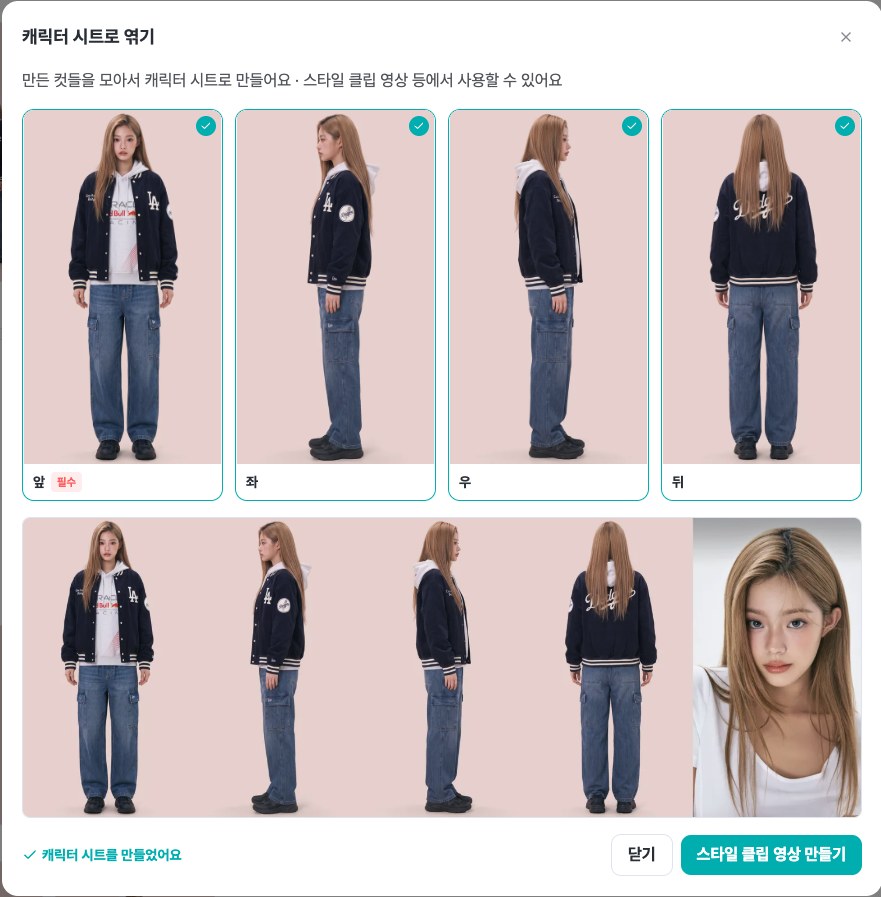
Style Clip opens with your new character sheet already in place. Add a template and the video is made with the same model in the same outfit!

Here is the Style Clip video made this way. The Horizon Set model and the varsity jacket carried straight into the video!
05 · FAQHorizon Set FAQ
Which angles can Horizon Set make?
Eight: front, front left, left, back left, back, back right, right and front right. You can pick only the angles you need.
Can I get different ratios for different marketplaces?
Yes. 9:16 is the default, and you can add 4:5, 1:1, 3:4, 2:3 and 5:6. Try 5:6 for MUSINSA, 1:1 for a Naver Smart Store main image and 4:5 for the Instagram feed.
Are Horizon Set crops free?
Yes. Crops like three-quarter, full length, top, bottoms and shoes, and anything you make with [Crop it yourself], are free.
If I crop roughly, will the ratio still be right?
Yes. The box is locked to the ratio you picked, and with [Fit to resolution] the size is fitted to the resolution you choose. To keep the original pixels, choose [Original size].
Can I make videos from horizon shots?
Yes. Make a sheet with [Make a character sheet], then click [Make a Style Clip video] and Style Clip opens with that sheet already in place.
One outfit, 8-angle horizon shots, one set.
On the day new arrivals come in, start with a Horizon Set.